Announcing Obsidian Projects

Are you writing and publishing content on a regular basis? Maybe blog posts for a website or videos for a YouTube channel? Then you probably have folders with drafts for all the content you’re working on, organized by different clients.
Today, I’m announcing Obsidian Projects—a plugin for managing note-based projects in Obsidian. In this post, I’ll walk you through some of the features.
While Obsidian is excellent for writing your content, managing a content calendar has been difficult. Recently, Nicole van der Hoeven published a video on how she manages content in Obsidian, which uses the Kanban and Fantasy Calendar plugins.
These plugins are great at what they do, but making them play nicely together can be challenging. Part of the reason is that they (naturally) use configuration and data formats custom to that plugin.
Instead, I’ve been looking for a more integrated experience to help me plan and manage my content.
Install the Obsidian Projects plugin
First, install the Obsidian Projects plugin.
- In the Obsidian app, open Settings.
- In the side menu, select Community plugins.
- Select Browse.
- Search for “projects marcus”, and then select the plugin in the list.
- Select Install, and then select Enable.
To start using it:
- Press
Ctrl+P(orCmd+Pon macOS) to open the command palette. - Search for Projects: Show projects and select it.
The first time you open the Projects view, you’ll have the opportunity to try a demo project to get a feeling for what you can do with it. Note that this creates a new folder at the root of your vault containing notes for demo purposes.
Projects
A project represents a collection of notes—for example, a folder with blog posts. The plugin extracts structured data from notes in a project into a unified (table-like) data format where every row is a note.
Once you’re ready to create your first project:
Click New > New project in the top-right corner.
Apart from naming your new project, you can set several configuration options:
- Path: A path to the folder you want to manage using Projects.
- Include subfolders: Enable to include notes in subfolders within the project path.
- Default name: If you have a naming convention for your notes, you can define a template for naming new notes, for example
{{date:YYYY-MM-DD}} - Work -. - Templates: Add note templates to choose from when you create a new note within the project.
Click Create project.
Tip: If you’ve enabled the Dataview plugin, you can configure a Dataview query instead of using a folder path. One limitation of using Dataview is that you can’t edit or create new notes. Dataview projects are read-only.
Views
Projects define the notes and the data that are part of your project. The next step is to add views to your project. Views let you manage your project from different perspectives. At the time of writing, Projects ships with four types of views: Table, Board, Calendar, and Gallery.
Tip: Click on the note links in each view to edit the note properties. Press Ctrl (or Cmd on macOS) while clicking on it to open the note in a new tab.
Table
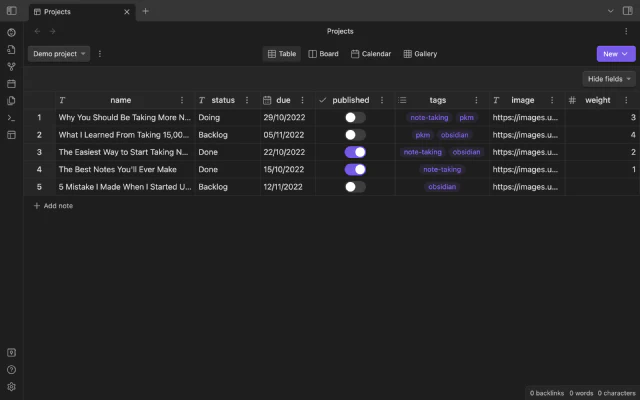
The Table view lays out your notes in a two-dimensional grid where each row represents a note, and each column represents a property of your note. For example, if your note contains YAML front matter, the Table view displays a column for every front matter property.
You can edit properties directly from the table or by right-clicking the row header and then clicking Edit note.
To open a note, hover over the row header and click the link icon.
Board
The Board view groups your notes into columns based on their status.
To add a new note to a column, click Add note at the bottom of the column.
If you select a template when creating the note, Board overrides the Status property in the template with the column name.
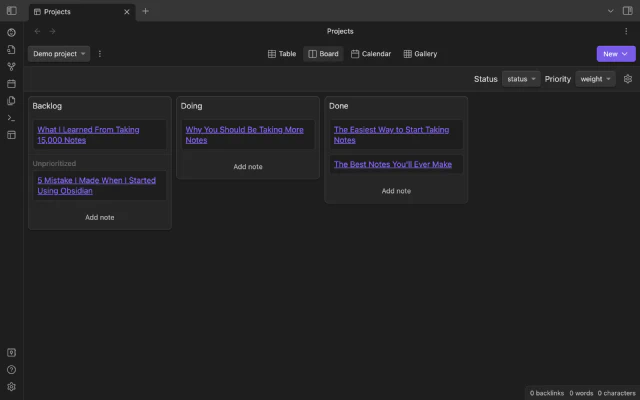
- Status configures a textual field for grouping notes into columns.
- Priority configures a numerical field for ordering notes within a column.
Calendar
The Calendar view displays notes with a date property as calendar events.
To add a new calendar event, double-click a date or right-click it and then select New note. If you choose a template when creating the note, Calendar overrides the Date property in the template with the date you clicked on.
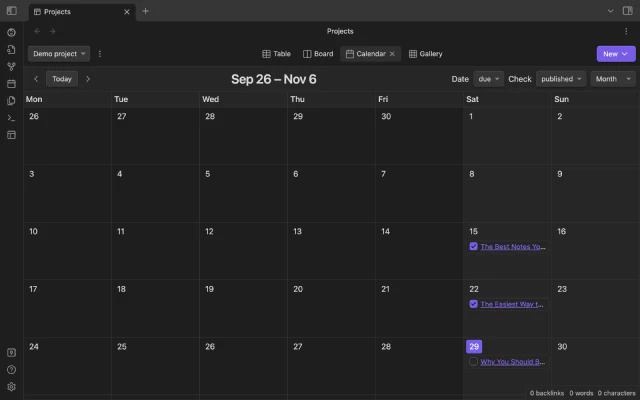
- Date configures a date field to convert your notes into calendar events.
- Check configures a boolean (true or false) field to add a checkbox to each calendar event.
Gallery
The Gallery view lays out your notes as cards in a grid. Each card can have an optional cover image.
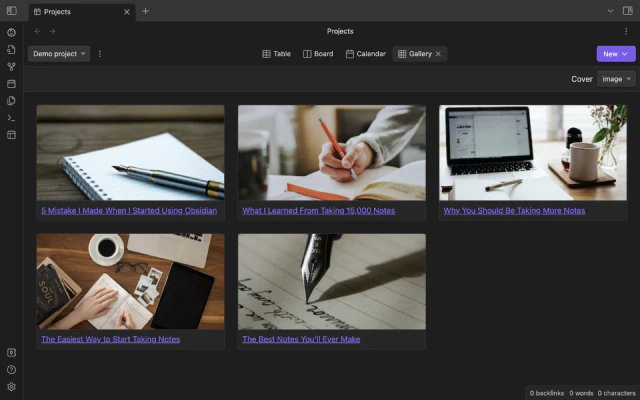
- Cover configures a textual field containing an image file’s internal path or URL.
Does Projects replace X?
The Obsidian community has created several amazing plugins that essentially work as standalone views. If all you need is a single view, you’ll probably be better off with one of the alternatives.
For example:
- If you only need a Kanban board, consider the Kanban plugin.
- If you only need a calendar, consider the Fantasy Calendar plugin.
- If you only need a table, consider the Database folder plugin.
Use Projects when you value breadth over depth—when you want to frequently look at your notes from different perspectives.
What’s next
When you’re using a tool for work, you have higher expectations on reliability. With Obsidian Projects, I prioritize stability and user experience over adding new features. In the short term, I expect to focus on bug reports and usability issues following the release of the plugin.
I don’t expect to be able to compete with similar plugins on features. Instead, I’m exploring integrating existing plugins as custom project views. If you’re a plugin developer and you’re interested in integrating your plugin with Obsidian Projects, you can join the discussion in github.com/marcusolsson/obsidian-projects#27.
So far, I’ve selfishly focused on building the plugin I wanted for myself. Create a GitHub issue to let me know how to improve it for you.
If you’re curious about what’s being developed right now, check out what I’m working on.
Finally, if this plugin has been helpful to you, consider supporting its continued development by buying me a coffee.